
Installation
How do I install this thing?
Installation Overview
The Pull Asset Prices tool is written in the Google Script programming language (essentially JavaScript) and runs using Google’s Apps Script platform. You will copy and paste a script into the Apps Script area of your spreadsheet, authorize it to run, then use it! 🤑
The tool will automatically build the required spreadsheet tab used for entering in your tickers.
Installation Considerations
This tool can be installed in a brand-new spreadsheet OR in an existing spreadsheet where you are already tracking your assets.
I suggest installing the tool in a single location (rather than multiple spreadsheets) and then plugging the asset-prices in where ever you need them. The asset-prices can be accessed from the same spreadsheet where the Pull Asset Prices tool is installed AND from any other spreadsheet you own.
Installing and using this tool from a single-spreadsheet means you only need to update your asset tickers in one location.
That being said, it’s up to you how you would like to use it! So do your thing 😎
Wait a second… Is this script safe to use?
The short answer is YES.
This script pulls price data from public APIs. It does not read or share any of your data.
If you would like a more in-depth explanation about this and a way for you to verify yourself, check out the Script Safety page.
Installation Steps
First things first. Open an existing Google Sheet or create a new Sheet where you would like to install the tool.
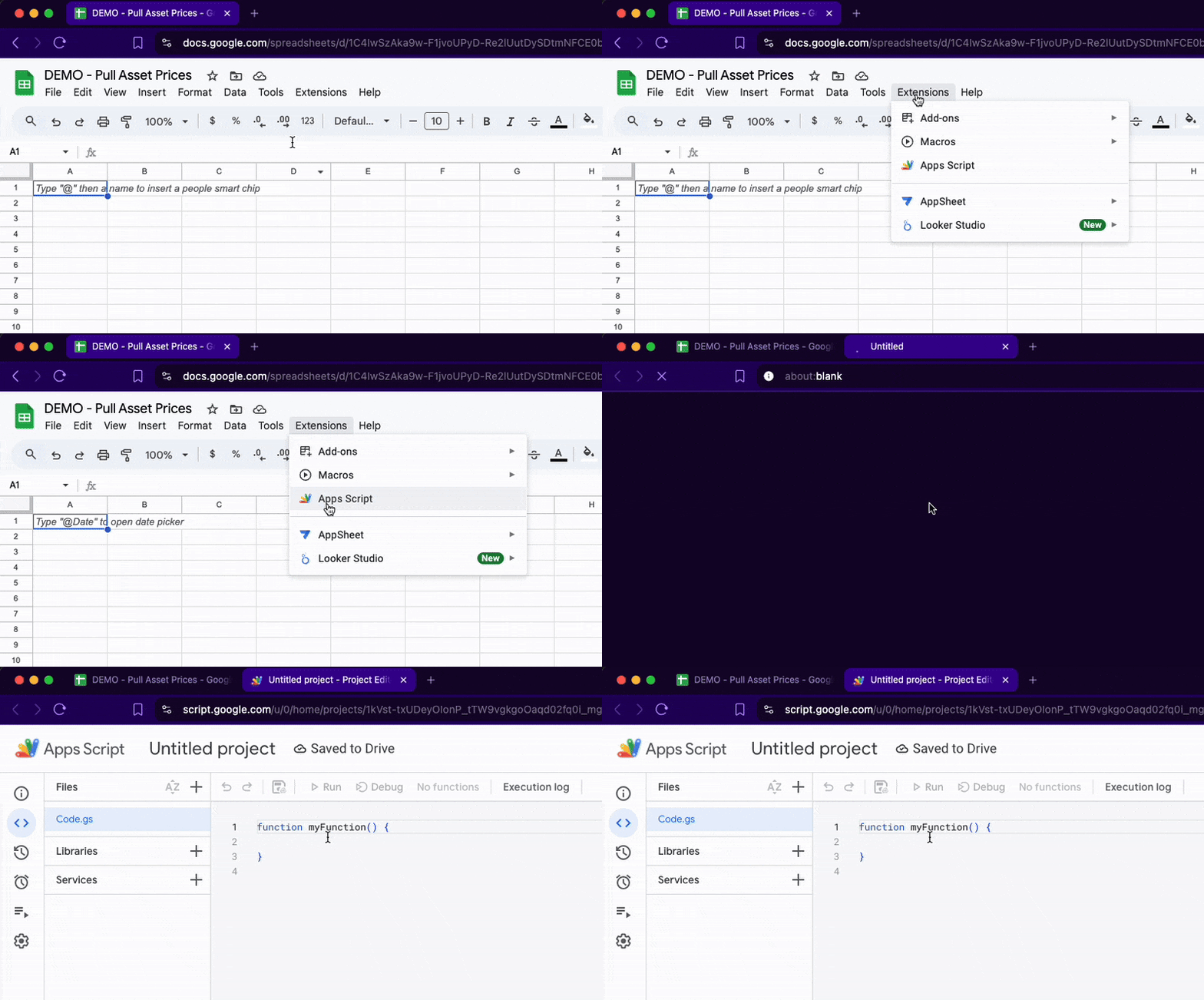
Step 1 - Open Apps Script
From your spreadsheet’s menu bar select Extensions > Apps Script
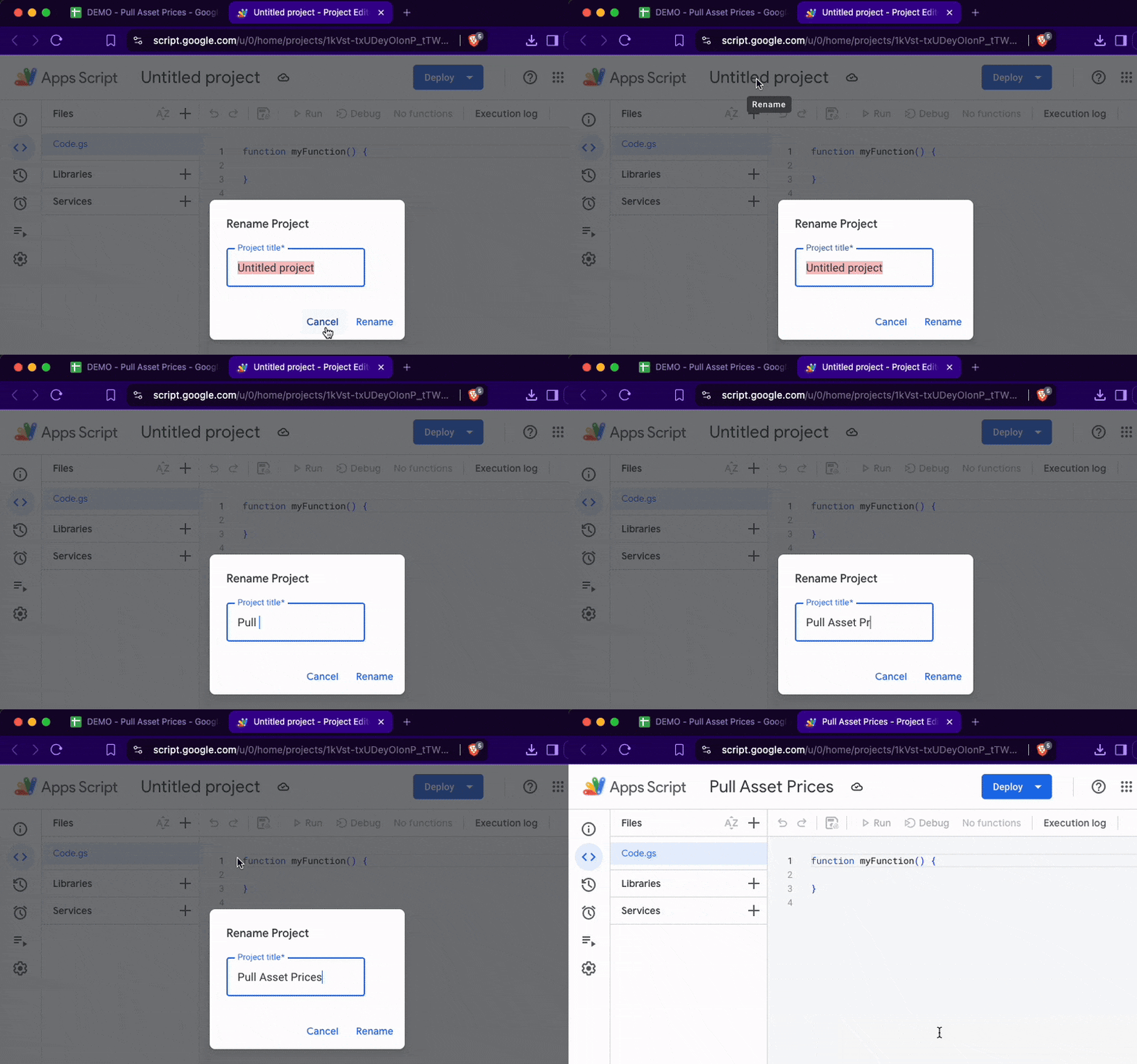
Step 2 - Rename the ‘Apps Script’ Project
Give the project a name so it’s something better than “Untitled project” 😒
Change the name to Pull Asset Prices
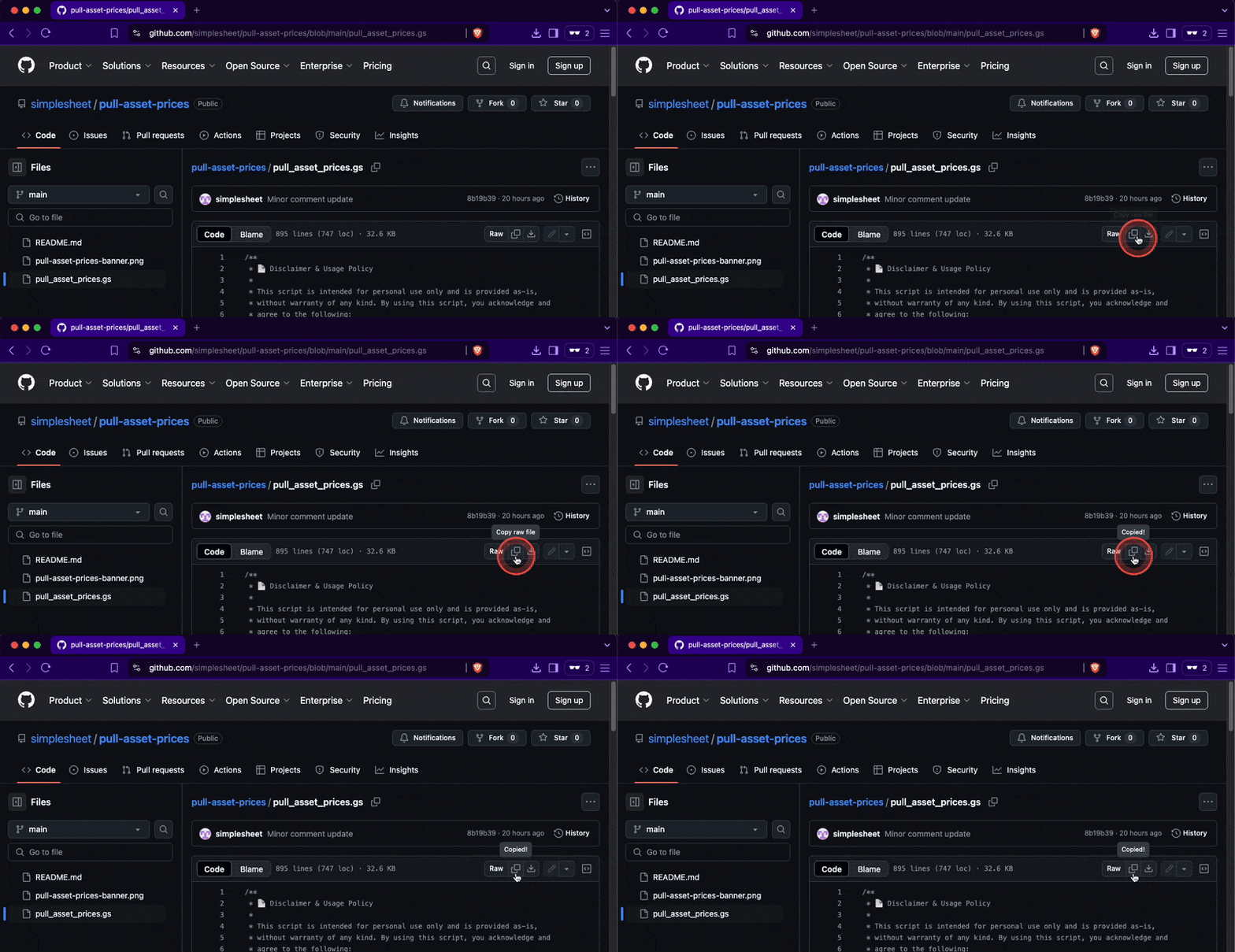
Step 3 - Copy the script
Open the Script Source page on Github and use the Copy raw file button to copy the script.
Script source URL: https://github.com/simplesheet/pull-asset-prices/blob/main/pull_asset_prices.gs
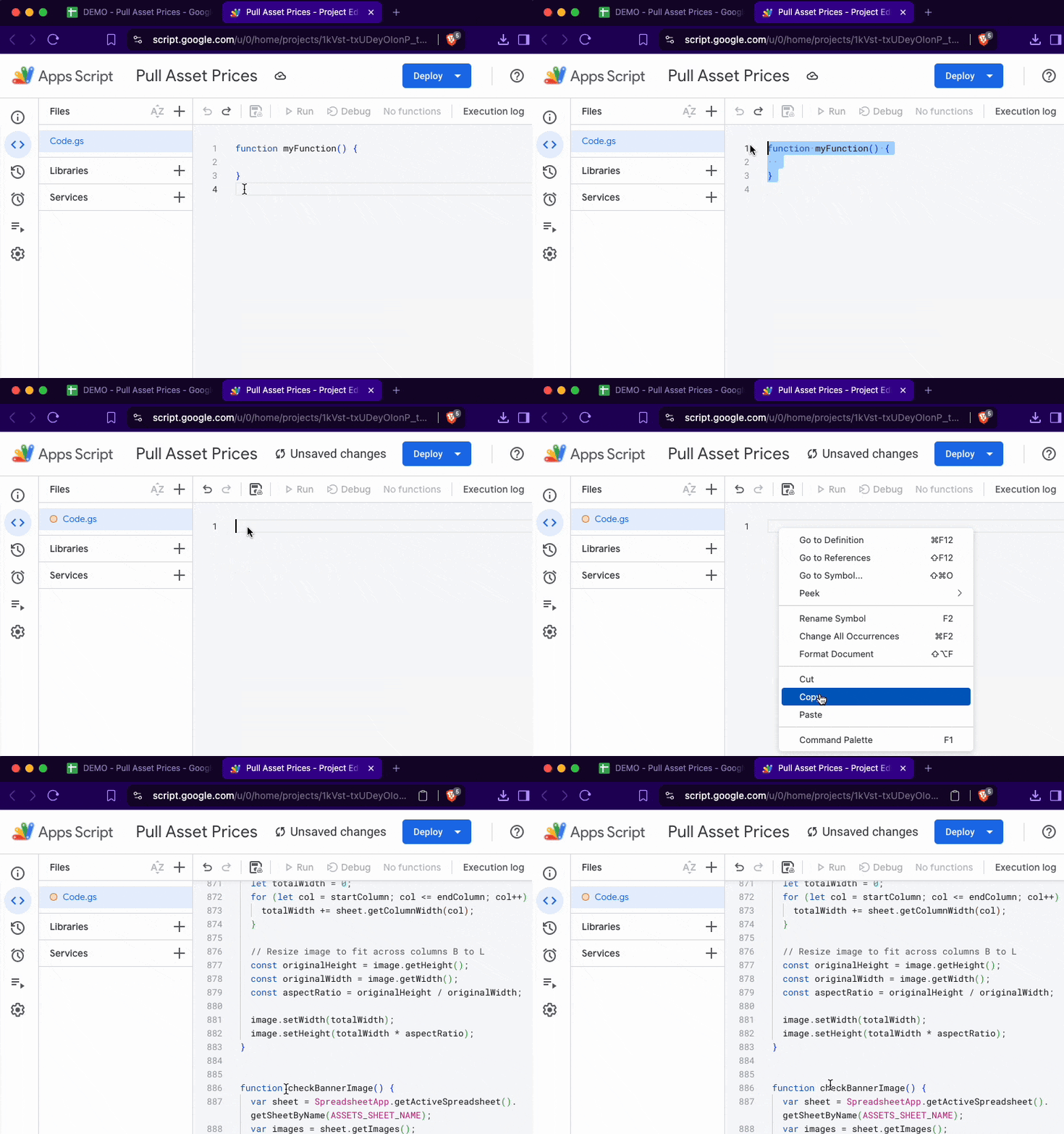
Step 4 - Paste the script
Now that you have the script copied to your clipboard from the previous step, it’s time to paste it into your Apps Script project.
Navigate back to the App Scripts project, remove the existing code, then paste the script code.
Step 5 - Save and Initialize the tool
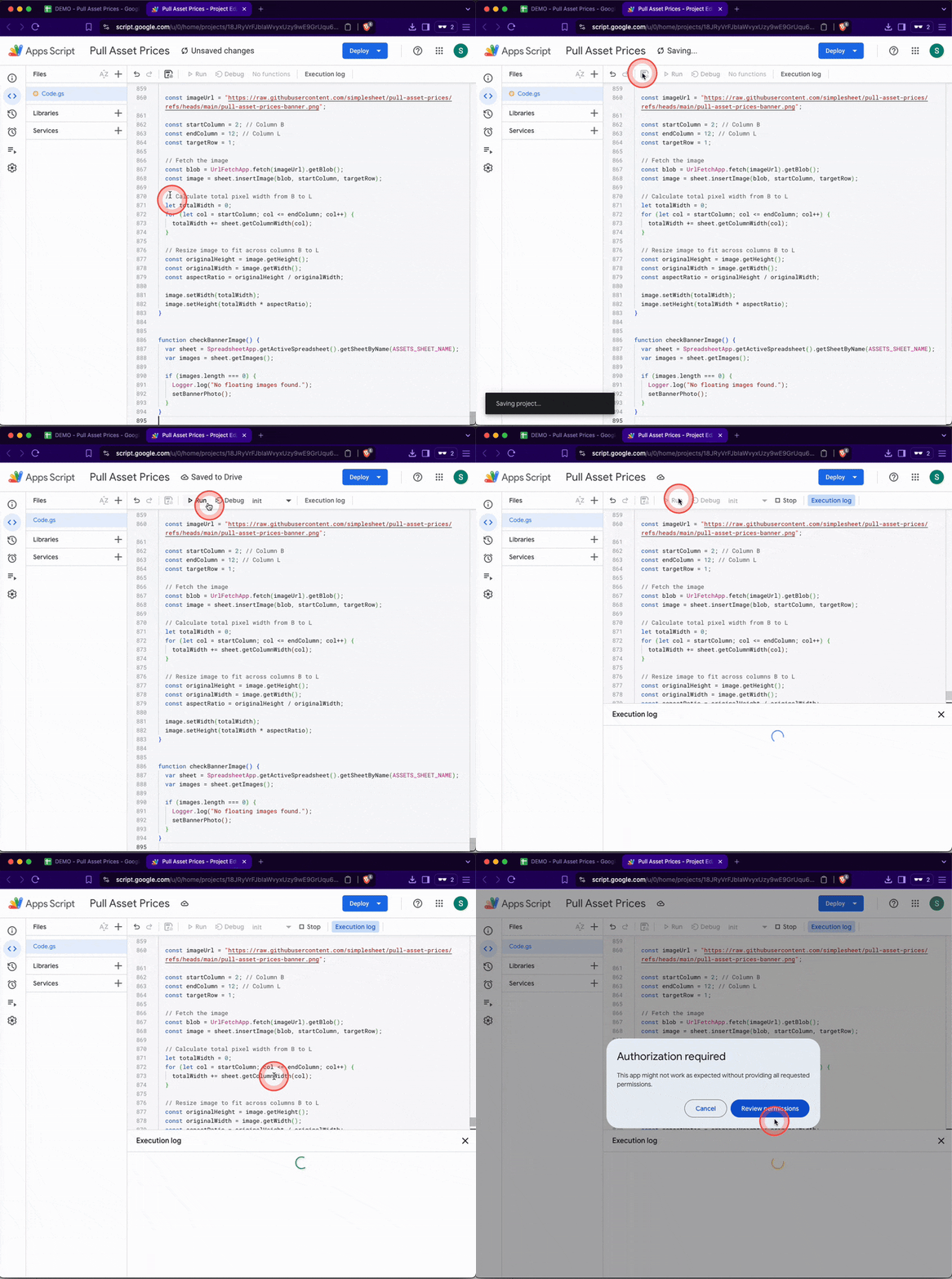
Click the Save button then click Run to initialized the tool
You will be prompted to authorize the app to run (see the next step for details)
Step 6 - Review and Authorize app permissions
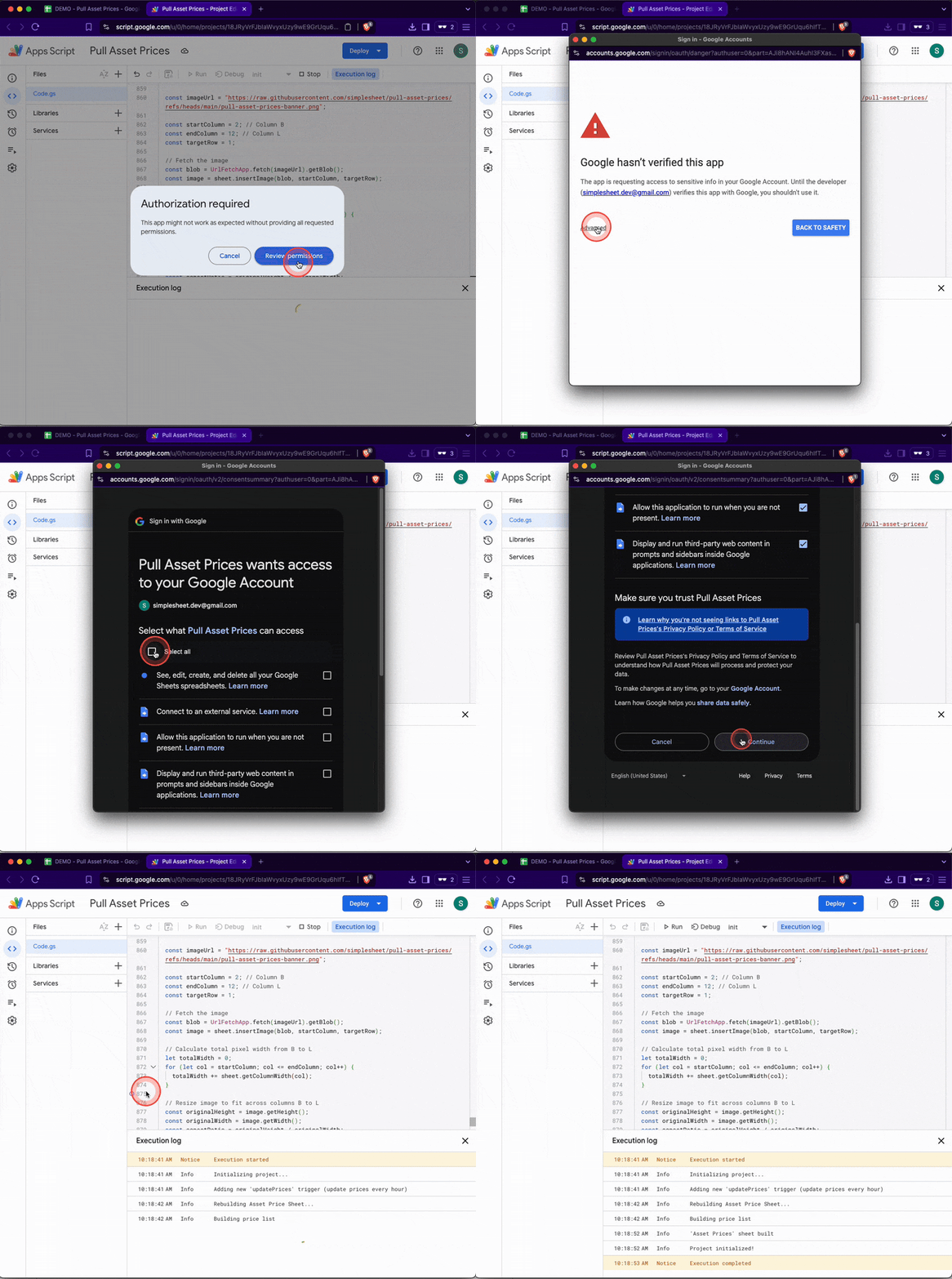
As with any app or add-on, Google requires your authorization to run the code.
The Google hasn't verified this app screen looks kinda scary 😱 but you can safely proceed. Check out the Script Safety page for more information.
Authorization Steps
- Click
Review permissions - Choose your google account that owns the spreadsheet
- Click
AdvancedthenGo to Pull Asset Prices (unsafe) - Select all of the access scopes then click
Continue
The app initialization will now proceed…
Step 7 - All done! 🎉
Phew! That was pretty Simple… right? 😅
The app is now initialized. You won’t need to mess with Apps Script anymore.
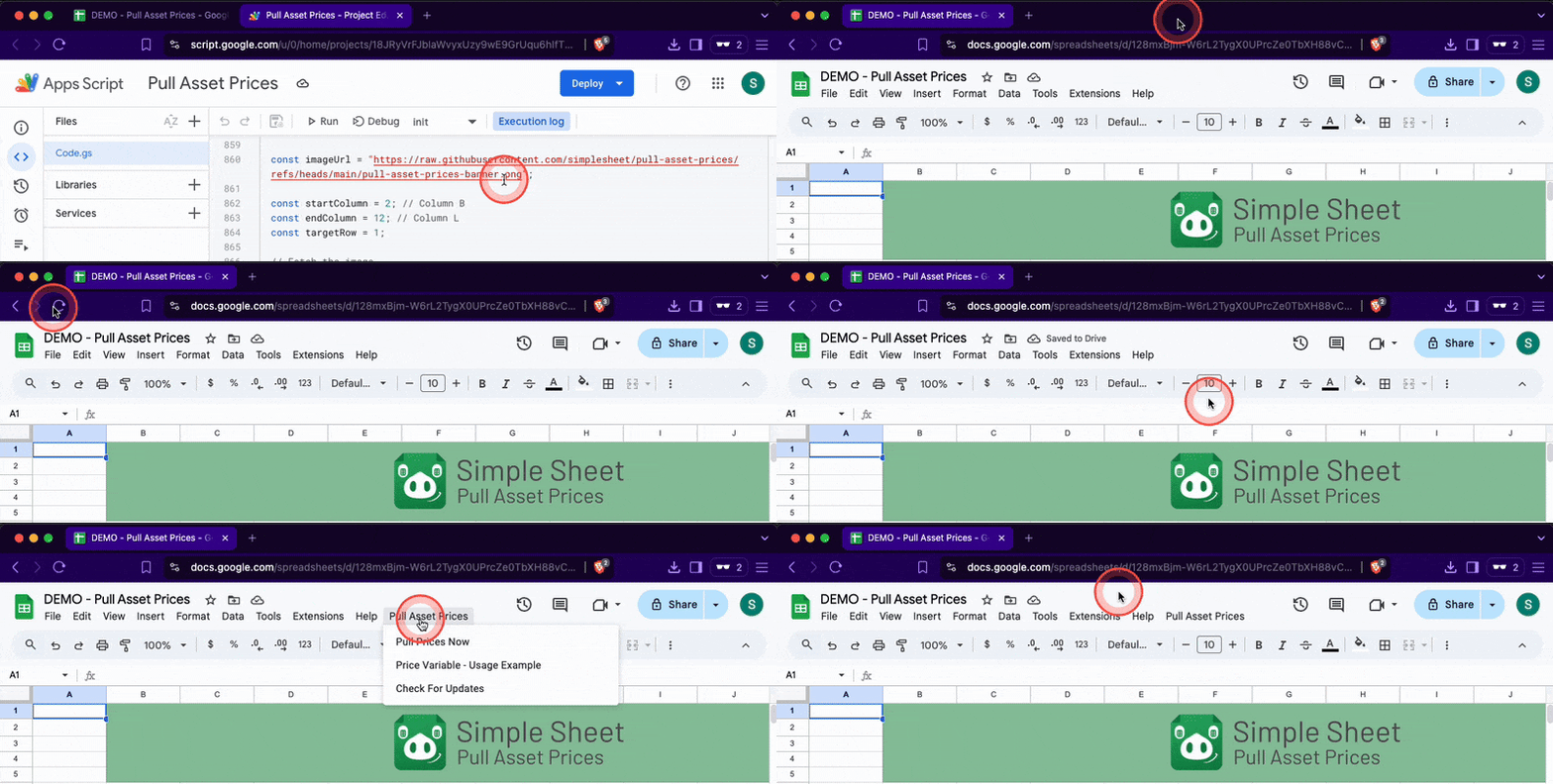
You’ll see a new Asset Prices tab on your spreadsheet.
- Close the Apps Scripts browser tab
- Then refresh your spreadsheet browser tab to see a new menu item appear: Pull Asset Prices
The menu option will now appear everytime you open the spreadsheet.
Next Step
Now that the tool is installed, you’re ready to start using it!
Review the Instructions page for usage instructions.
Using it is even more simple than the install! 😅