
How to Update
Before updating, save yourself some time and make sure you need to!
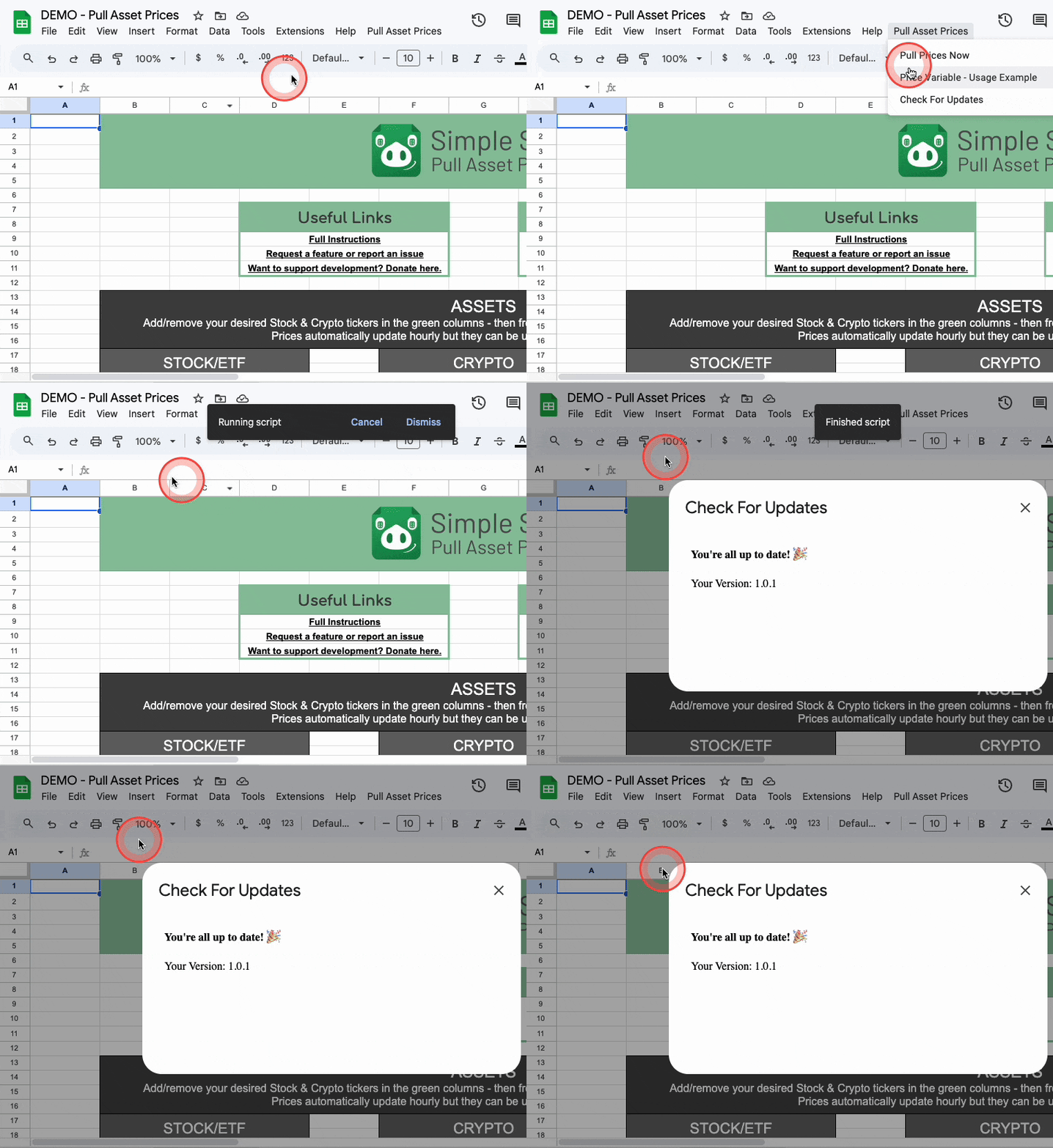
Check your spreadsheet to confirm there is an update available by going to Check For Updates from the menu.
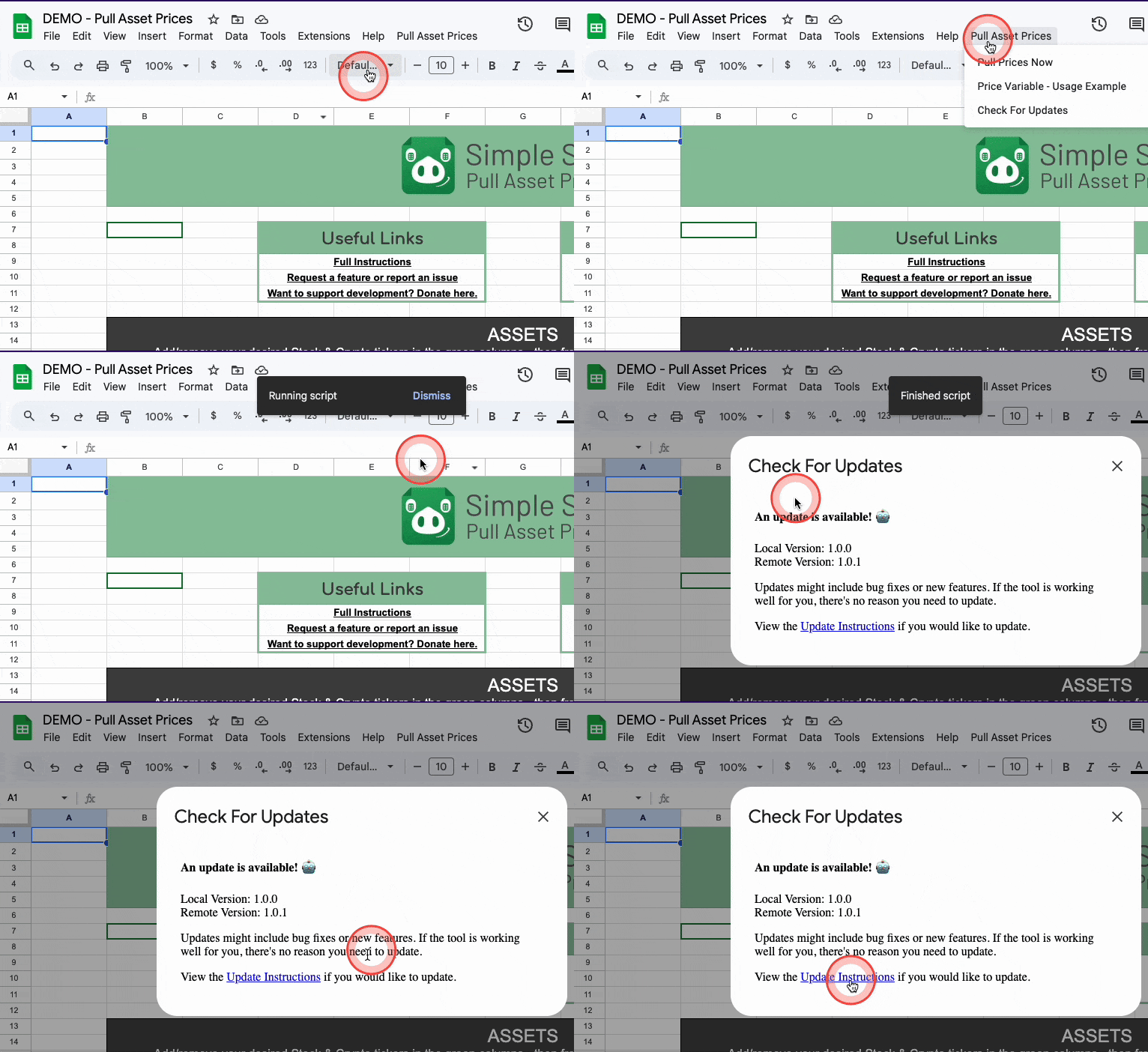
Update Steps
So you have an update available? Let’s get you on the latest version!
The short explanation is: Copy the new version of the script, and replace the current one you have. Detailed instructions are below.
(To see what was updated, check the Change Log)
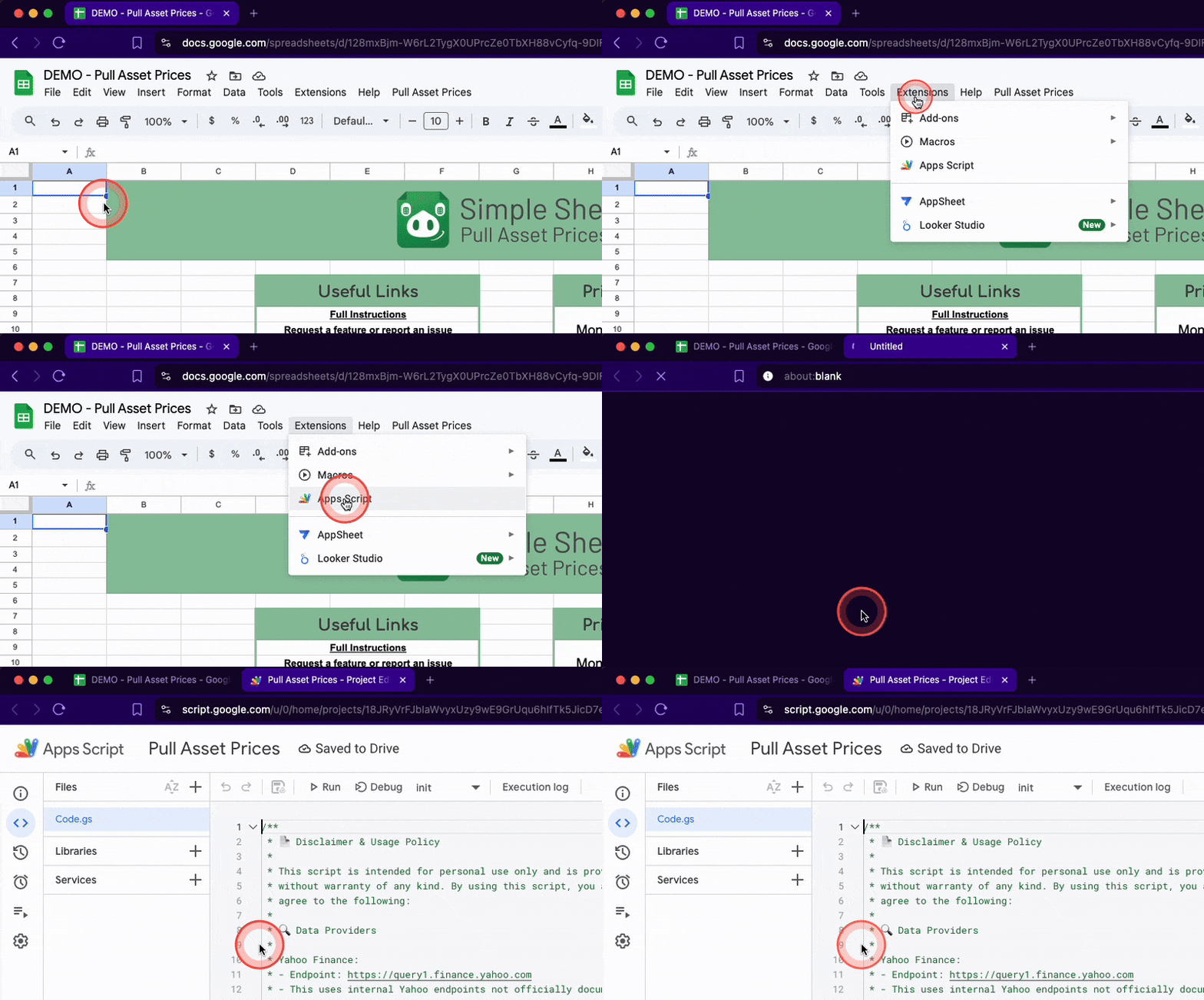
Step 1 - Open Apps Script
From your spreadsheet’s menu bar select Extensions > Apps Script
Step 2 - Copy the updated script
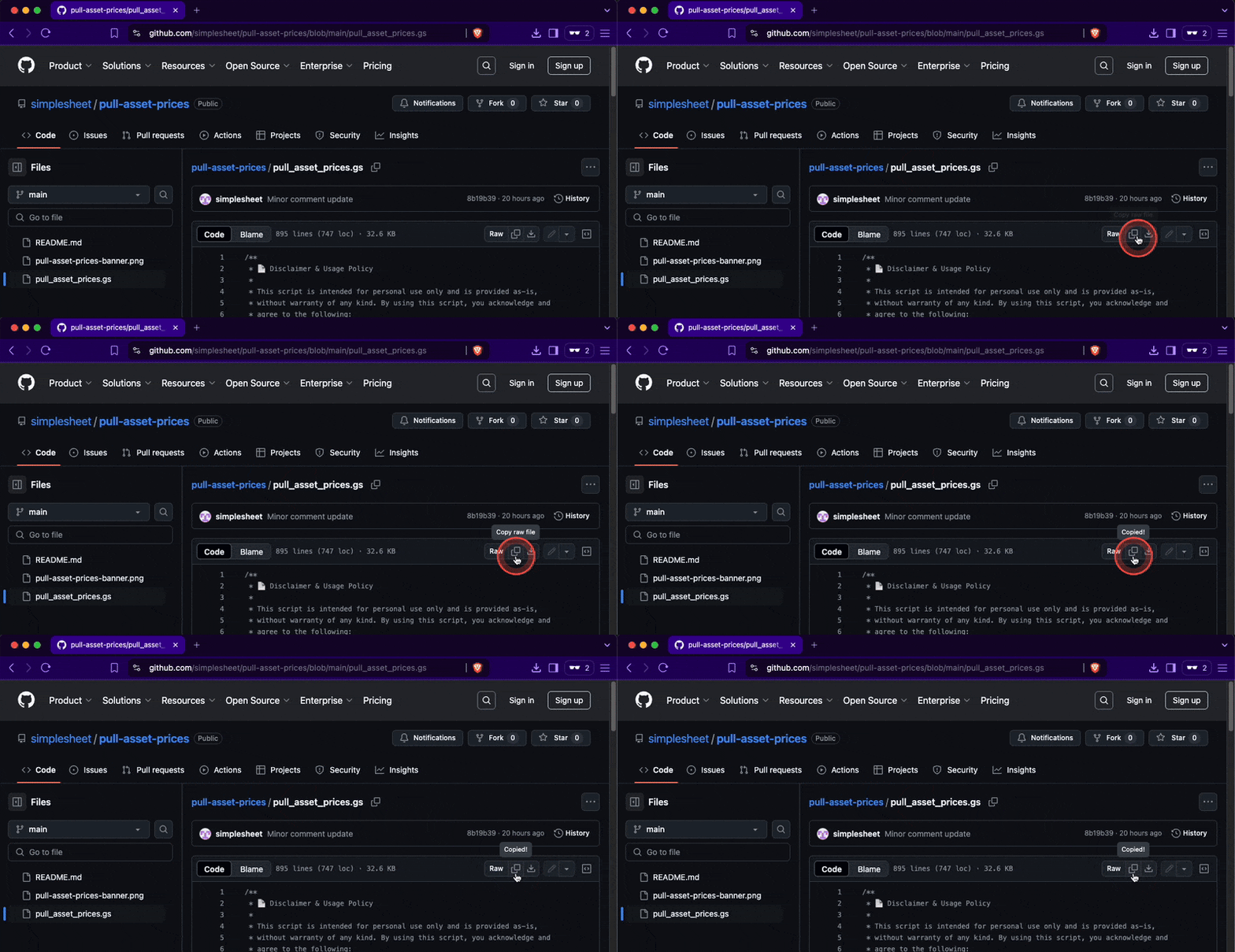
Open the Script Source page on Github and use the Copy raw file button to copy the script.
Script source URL: https://github.com/simplesheet/pull-asset-prices/blob/main/pull_asset_prices.gs
Step 3 - Paste the script and save
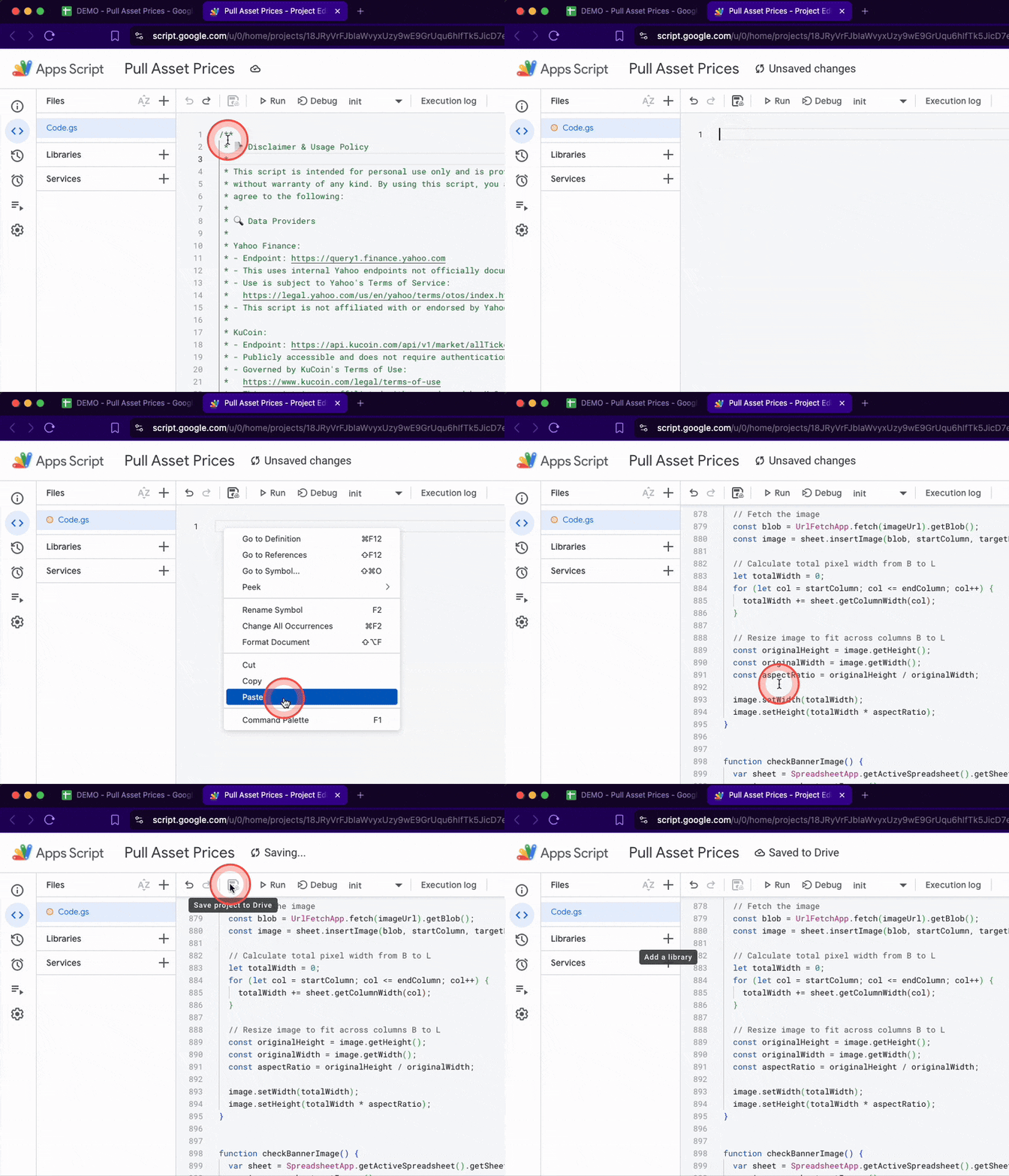
Now that you have the updated script copied to your clipboard from the previous step, it’s time to remove the existing script then paste the new one into your Apps Script project.
- Navigate back to the App Scripts project.
- Use a keyboard shortcut to easily select all of the existing code, then delete it:
- Mac: Command+A
- Windows: Ctlr+A
- After deleting all of the existing code, paste the updated script code.
- Finally, click the Save button. After that you can close the Apps Script tab.
That’s everything!
Your Pull Asset Prices is now up to date! 🎉
You can confirm by checking your version again.
Have feedback? Please let me know HERE