
Instructions
You completed the Installation steps already, right? If not, head over there first.
With the tool installed - It is TIME ⏱️ Let’s automate those asset prices!
Definition Check
What the heck is a “Price Variable”?
A “Price Variable” is used to plug the price of an asset into another spreadsheet cell. It’s actaully what spreadsheet software calls a “Named Range”. So instead of having to reference a price value with something like
='Asset Prices'!B20we can just use=TSLA_Price.The “Price Variable” column simply displays the coresponding “Named Range” for the asset price for easy reference.
If this makes no sense, it will by the end of these instructions 😁
Step 1 - Enter your asset tickers
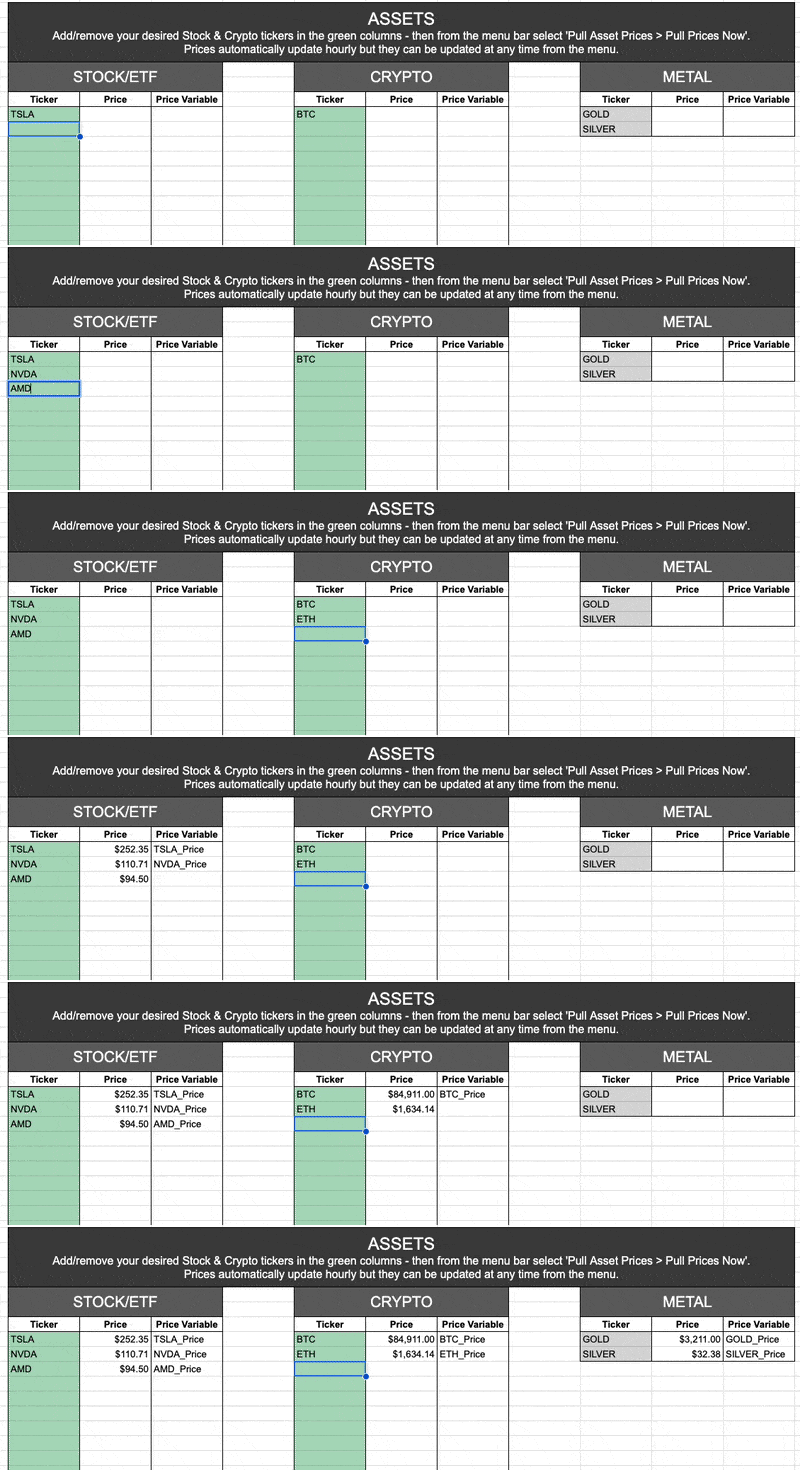
Navigate to the Asset Prices tab and add your desired Stock and Crypto tickers to the green columns.
The Asset Prices tab is protected
The Asset Prices tab has “protection” applied that blocks all edits on the spreadsheet - except the green ticker columns. If you attempt to edit another cell you’ll get a popup warning that prevents you from accidentally changing something.
I don’t recommend changing anything besides the tickers unless you know what you are doing 😉
Step 2 - Trigger a price update
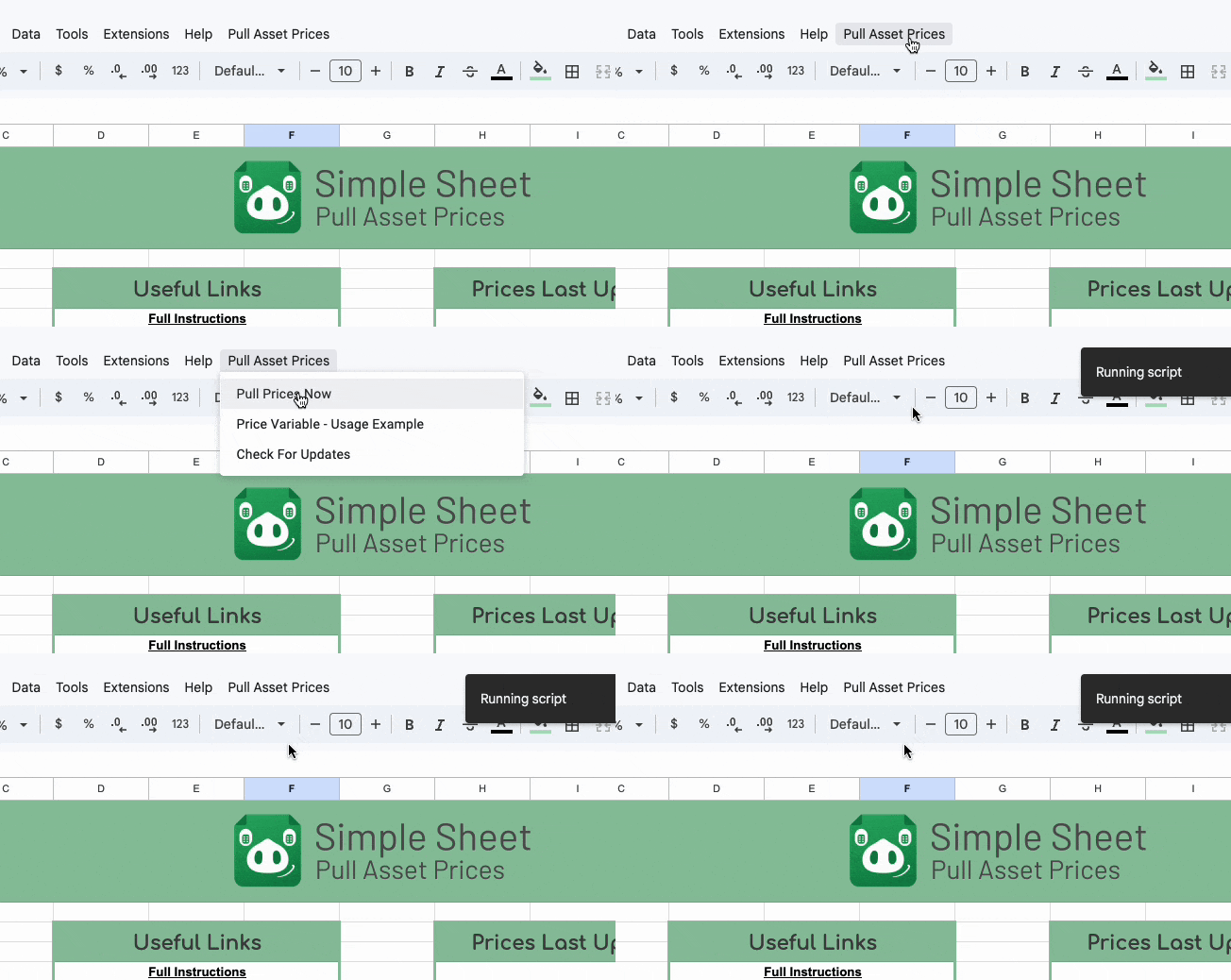
Use the menu to trigger a price update: Pull Asset Prices > Pull Prices Now
Reminder
Prices will automatically update hourly, but you can update them anytime from the menu.
It’s useful to trigger an update after you add new tickers - that way the asset price(s) and variable(s) get set.
This will update all prices of the listed tickers and create a new corresponding Price Variable for each ticker.
Step 3 - Review the results output
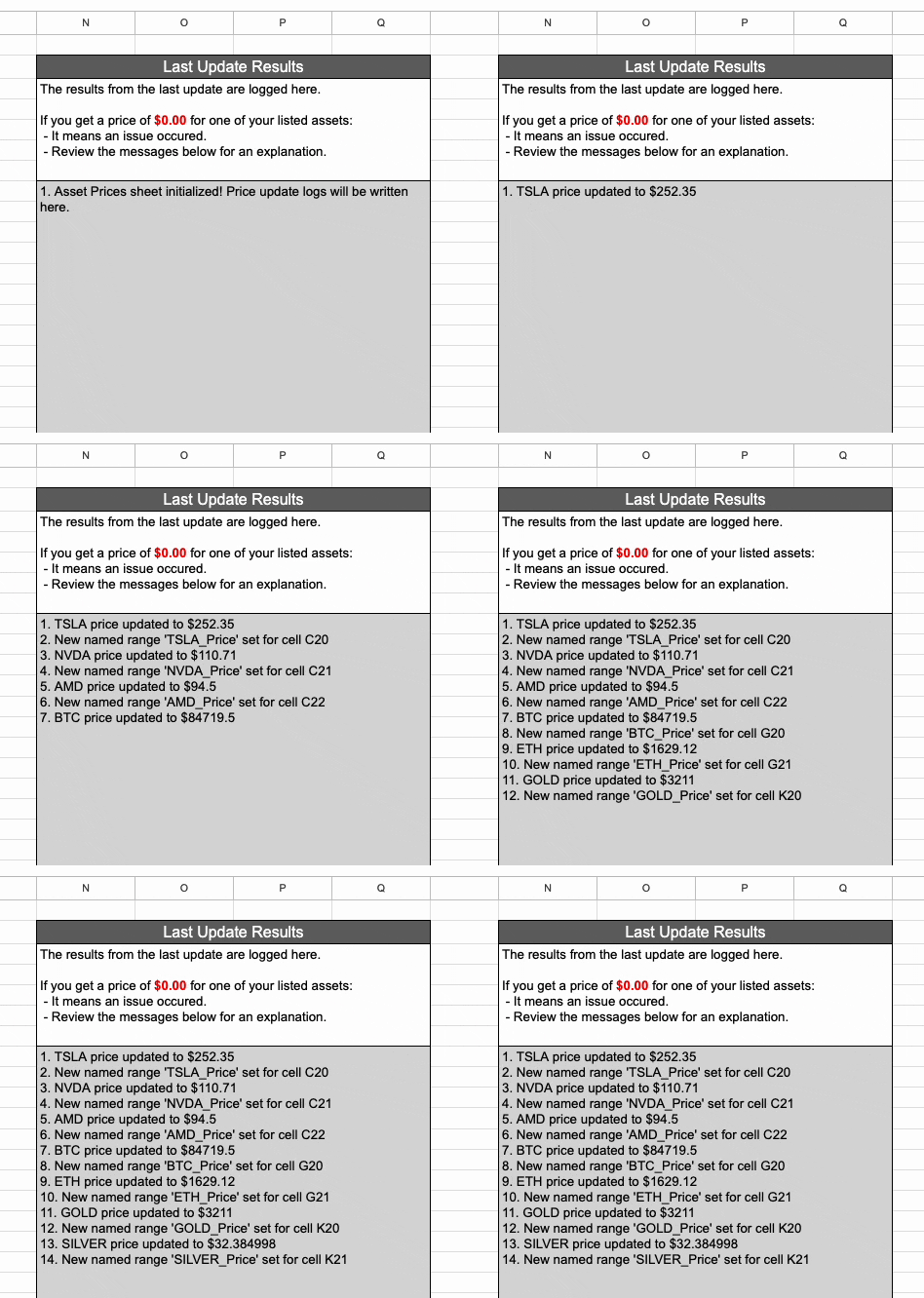
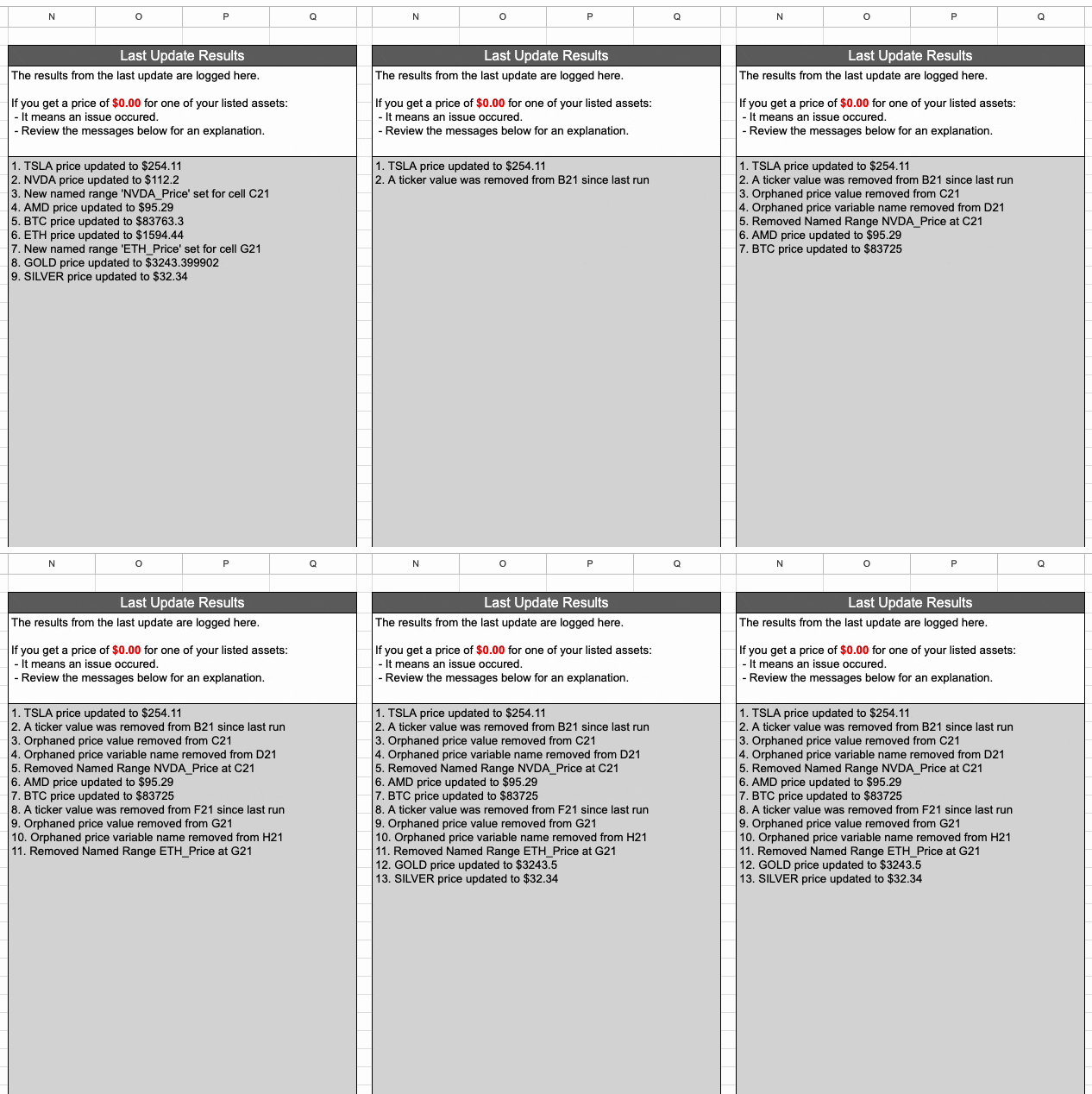
The results from the price update are displayed for transparency and troubleshooting (if needed).
Step 4 - Use the price values in your sheet
Now that you have price variables available, you can:
- A) Use them in the same spreadsheet that the Pull Asset Prices tool is installed in
- B) Use them in another spreadsheet.
Tip
There is a quick reference available for this in the tool menu at:
Pull Asset Prices > Price Variable - Usage Example
It autogenerates two example formulas for you to use, including your spreadsheet URL.
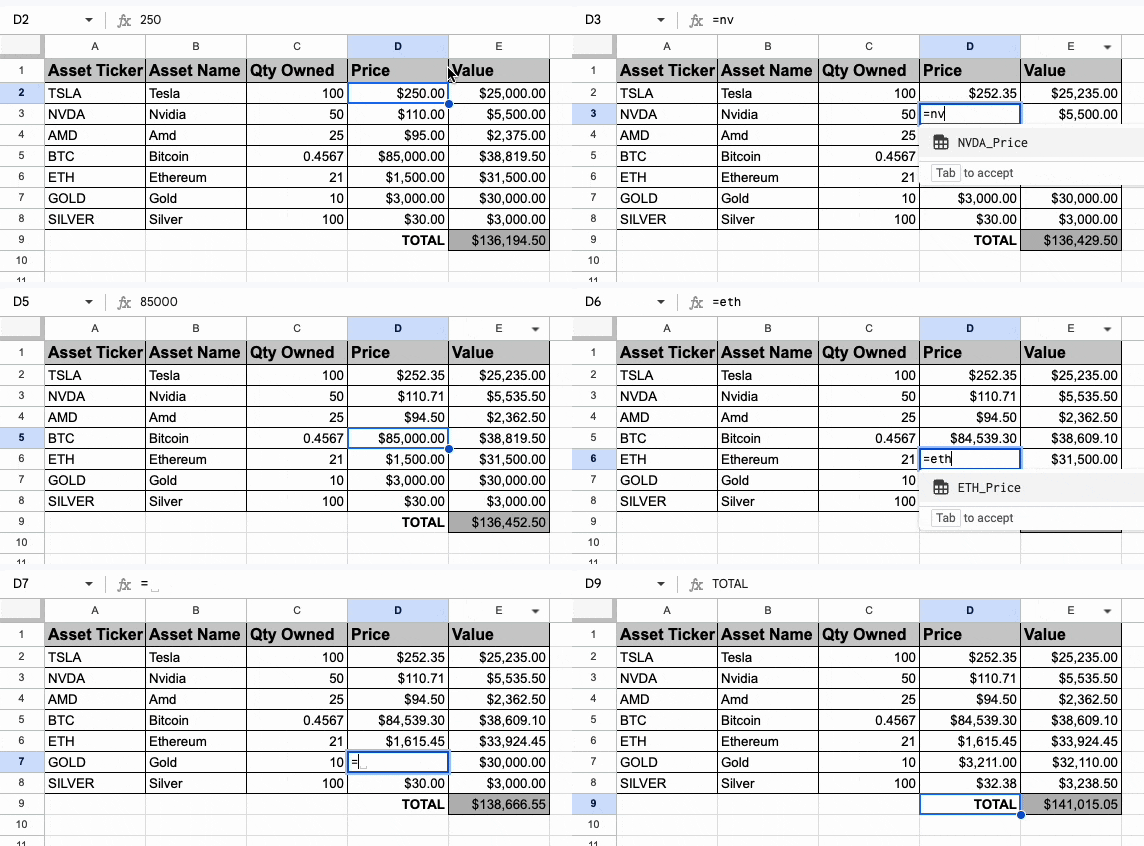
A) Use price variables in the same spreadsheet that the tool is installed in
Using TSLA as an example, enter =TSLA_Price into a cell.
B) Use price variables in a different spreadsheet
To use the price variable in another spreadsheet, use the IMPORTRANGE formula.
The first argument of the formula must be the spreadsheet URL where the Pull Asset Prices tool is installed. Copy everything in the URL before the ? (the question mark).
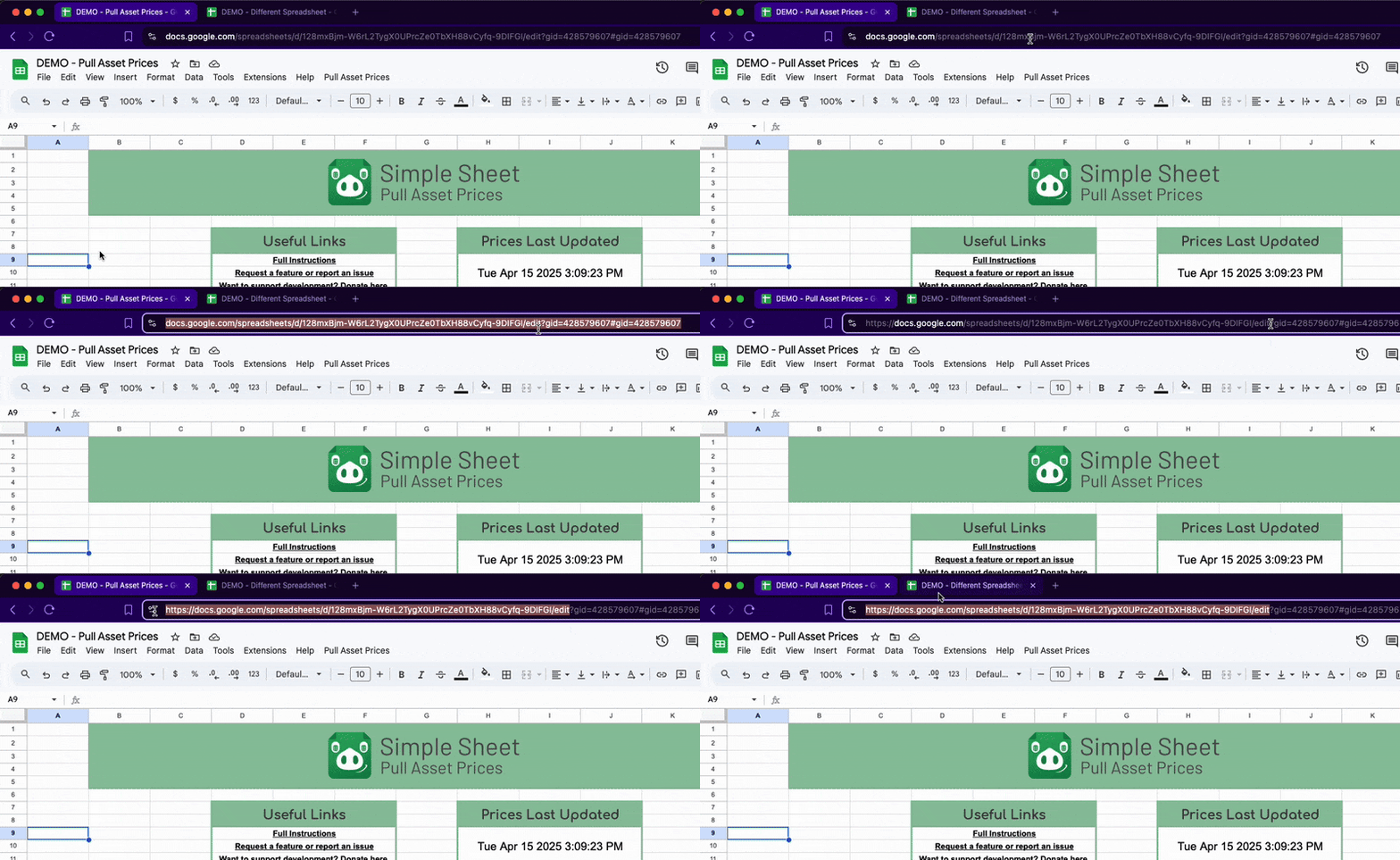
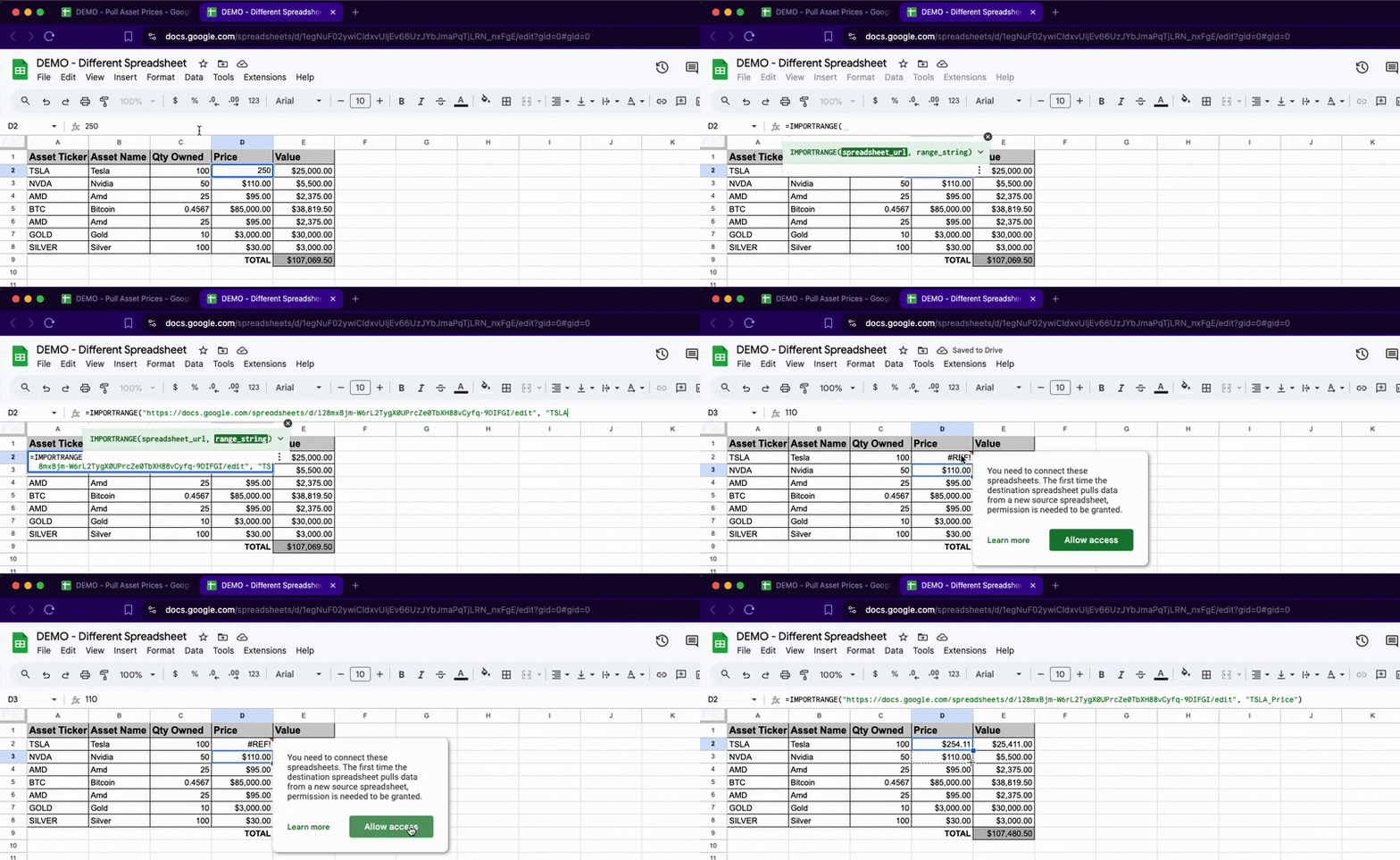
Using TSLA as an example, enter =IMPORTRANGE("https://docs.google.com/spreadsheets/d/YOUR-SPREADSHEET-ID-HERE/edit", "TSLA_Price")
Note
The first time you import a range into your spreadsheet, you’ll need to click the notification in the cell and authorize it (see preview below).
Subsequent imports from the same spreadsheet will be good to go!
Step 5 - Remove tickers
If you want to remove a ticker, simply delete it and the next update will clean up the orphaned price and variable.
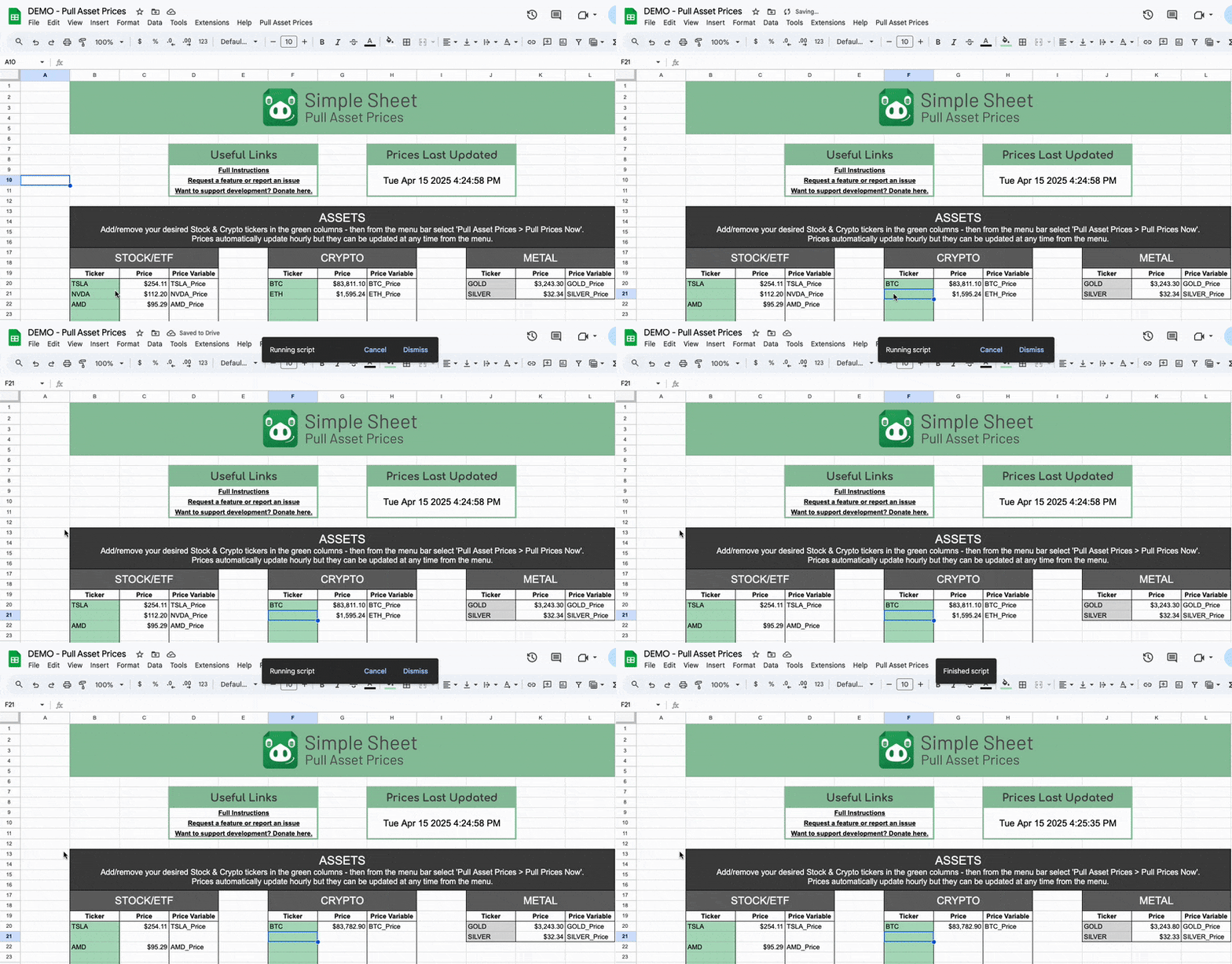
Results output from that ^ update.
That’s everything!
Thanks for checking out Simple Sheet. I hope this tool is both useful for you - and simple to use!
Have feedback? Please let me know HERE